Monday, February 24, 2014

Samsung Galaxy S5 Smartphone Launched in April 2014

Samsung Galaxy S5 Smartphone Launched in April 2014 All over the USA with Country Major Carriers .


The Most predictive  Samsung Galaxy S5 smartphone is  going to release on April 11 together with land at a number of U .S . service providers , which include AT&T , T-Mobile , Verizon , Sprint and also MetroPCS . The smartphone was very first announced at the Mobile World Congress event in Barcelona on Monday .

The company's newly-announced bunch of wearables — the Gear 2 , Gear 2 Neo and also Fit wristband tracker — may also be coming to the similar networks . Costs for the devices not yet been declared .


Samsung Galaxy S5  Smartphones are going to release in 150 countries around the world in 16GB as well as 32GB .


A little specification is  device has 5 .1-inch,1920 x 1080 HD display with a quad-core 2 .8GHz chip and runs on Android 4 .4 .2 KitKat . Additional bells and whistles include a fingerprint scanner , a heart rate detector , a near field communications ( NFC ) sensing unit and Bluetooth 4 .0 .


Source : Mashable

Labels: , , ,

Friday, February 21, 2014

Android 4.4.2 Kitkat for Samsung Galaxy S4 I9500 Smartphone


Latest Updates Android 4.4.2 Kitkat XXUFNB3
Offical Firmware for Samsung Galaxy S4 I9500 Smartphone.


To update world wide Samsung Galaxy S4 19500 smartphone download the Latest update Android 4.4.2 Kitkat by selecting your country. 
 Download firmware file. Unzip downloading files and make sure there is file with extension of .tar.md5 as shown in image. 

  • Download Odin 3.09 Download driver for Samsung smartphones or install Samsung Kies for reliable and best drivers for smartphones

odin 3.07

  • Put your Samsung Galaxy S4 I9500 smartphone in Downloading mode by Pressing "Home+Volume Down (-)+Power Button". if your phone is not rooted then you will see android logo with text "Downloading".
  • If your smartphone is rooted then you will see warning message with triangular mark. Press volume up button to turn on download mode for smartphones
  • Insert usb cable into smartphone . Now computer will install drivers and successfully install drivers for your smartphones .(Make sure install Samsung Kies for better driver installation.)
  • Run Odin . Odin will automatically select com port for your smartphone in ID COM tab.

  • Now Tick on second option PDA and click on PDA tab . A pop up will come . Select downloading files.
  • Odin will install some files manually . wait for few second . 
  • Click on start . installation will be start and take place on your Samsung Galaxy S4 smartphone. You can monitor what odin is doing with your device by left tab of odin tool.As mention in picture.

  • Installation bar will take place on Samsung Galaxy S4 smartphone . Wait and let odin done. Do not remove your Samsung Galaxy S4 I9500 smartphone until you will recive message on Odin "PASS".

  • Congrats. You have successfully update your Samsung Galaxy S4 I9500 to android 4.4.2 Kitkat
  • Do not remove your smartphone ,or your turn off your Computer during flashing process. Make sure to charge battery to 100% for safe flash. 
  • Backup your personal data before updating.


Labels: , , , , ,

Monday, February 17, 2014

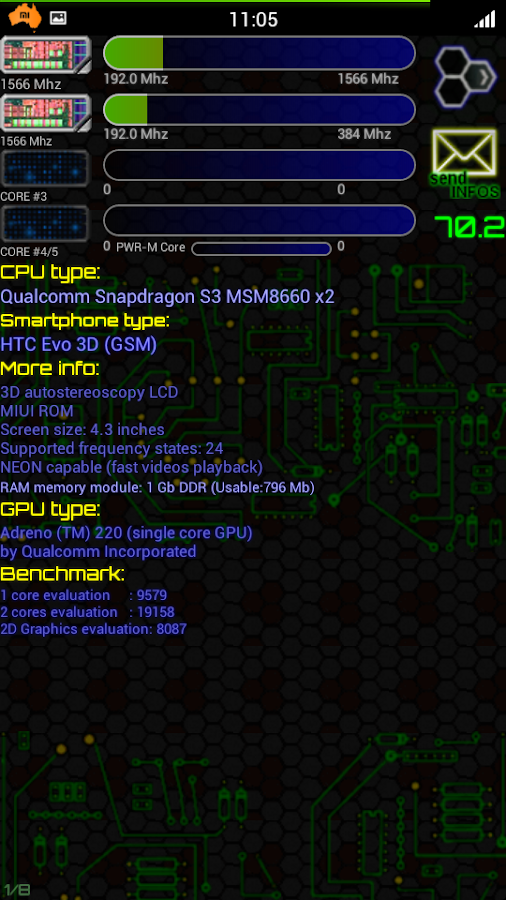
Do you really know the actual spec of your Tablet PC & Smartphones ?

Do You Really know what is running inside your Tablet PC & Smartphones ?
To know the complete Specification  Download and install directly from your Android tablet pc or Smartphones via Google play store


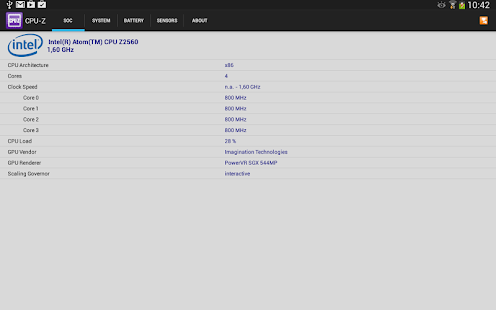
CPU-Z is another app related to Device identifier . you can also download it from google play store. 
Download app CPU Z


The application is available on google play store having multiple functions . This app can detect CPU Type ,Ram Module, Core Numbers ,Speed,GPU Name,Sensors,Touch drivers,CPU Stats,Size,PCB name,CPU Name . Application is available for Tablet Pc and smartphones . 
Tips: You can also change specifications of your device with these apps but do not. Honesty is best Policy. 

Labels: , , , ,

Monday, February 10, 2014

Update Samsung Smartphones firmwares with ODIN Flashing Tool

How to Update Samsung Smartphones firmwares
with ODIN Flashing Tool


To update Samsung smartphones you need to download the update from Samsung official web page . 
visit Sammobile , Choose latest update firmware for your smartphones or tablet pc . Download file , Download size depend on your device. Unzip downloading files and make sure there is file with extension of .tar.md5 as shown in image. 

  • Download Odin 3.07 (for Samsung Galaxy Note2,Samsung Galaxy Note3,Samsung S4 download 3.09).Download driver for Samsung smartphones or install Samsung Kies for reliable smartphones drivers. 

odin 3.07

  • Put your smartphone in Downloading mode by Pressing "Home+Volume Down (-)+Power Button". if your phone is not rooted then you will see android logo with text "Downloading".
  • If your smartphone is rooted then you will see warning message with triangular mark. Press volume up button to turn on download mode for smartphones
  • Insert usb cable into smartphone . Now computer will install drivers and successfully install drivers for your smartphones .(Make sure install Samsung Kies for better driver installation.)
  • Run Odin . Odin will automatically select com port for your smartphone in ID COM tab.

  • Now Tick on second option PDA and click on PDA tab . A pop up will come . Select downloading files.
  • Odin will install some files manually . wait for few second . 
  • Click on start . installation will be start and take place on your smartphone. You can monitor what odin is doing with your device by left tab of odin tool.As mention in picture.

  • Installation bar will take place on smartphone . Wait and let odin done. Do not remove your smartphone until you will recive message on Odin "PASS".

  • Congrats. You have successfully update your smartphone to latest available version. 
  • Do not remove your smartphone ,or your turn off your Computer during flashing process. Make sure to charge battery to 100% for safe flash. 


Labels: , , , , ,

Sunday, February 9, 2014

Hard reset Orange ZTE Sanfrancisco P736V Smartphones.

How To Hard Reset Orange ZTE Sanfrancisco p736v Smartphone

What is Hard Reset ?

A hard reset is also called Factory reset. When you restore your Android device to state when it  left the factory or first time the Smartphones or Tablets turns on . Hard Reset erase all user setting,contents (i.e games,contacts,messages,apps preference setting ,bookmarks,third party apps as well .) So if you're enough lucky then you can make  backup of all your data before hard reset .In most cases user data lost. Different Android Devices have different method for Hard Reset. 


When Hard Reset is Necessary for Smartphones or Tablets ?


1. Forgotten Pattern Lock on Android Tablets or Smartphones
2.Too many pattern attempts / Reset user lock.
3. Tablets PC,Smartphones stuck on Gmail account.
4. Android Tablet PC or Smartphones stuck on Android logo.
5. Tablet Android or Smartphones hang on start-up / Multiple errors generating by OS
6. Android market having problems or generating errors. 
7.Upgrading to new Android version.
 Make sure to charge battery upto 60%.

hard reset smartphones
Orange Sanfrancisco p736v Hard Reset

How to Soft Reset ZTE Sanfrancisco P736V Smartphone.


Soft reset is good when your Android device is working slowly . Soft Reset shut down all running smartphone app,system files,programs. All unsaved work should be lost . 
To perform soft reset , remove the back  cover of htc smartphone aria , pull out battery for 15 sec .turn on htc smartphone . 

 How to Hard Reset ZTE Sanfrancisco P736V Smartphone.


  • To reset ZTE Orange Sanfrancisco P736V you do not need to find combination for recovery mode
  • In case of forgotten pattern lock or user lock simply turn on the Sanfrancisco P736V smartphone.
  • Click on "Emergency Calls".
  • You will redirect to dialer .
  • dial *983*987# from phone.
  • Factory reset menu will be pop up .
  • Click on "Erase everything ". 
  • Smartphone will be restart and take 1 minutes to boot . 
  • Smartphone unlocked

Labels: , , , , ,

Tuesday, January 28, 2014

Hard Reset HTC Wildfire Smartphone

How To Hard Reset  HTC Wildfire Smartphone

AT&T ,Orange UK,Verzion

What is Hard Reset ?

A hard reset is also called Factory reset. When you restore your Android device to state when it  left the factory or first time the Smartphones or Tablets turns on . Hard Reset erase all user setting,contents (i.e games,contacts,messages, android market apps preference setting ,bookmarks,third party apps as well .) So if you're enough lucky then you can make  backup of all your data before hard reset .In most cases user data lost. Different Android Smartphones and Tablets have different method for Hard Reset


When Hard Reset is Necessary for Smartphones or Tablets ?


1. Forgotten Pattern Lock on Android Tablets or Smartphones
2.Too many pattern attempts / Reset user lock.
3. Tablets PC,Smartphones stuck on Gmail account.
4. Android Tablet PC stuck on Android logo.
5. Tablet Android or Smartphones hang on start-up / Multiple errors generating by OS
6. Android market having problems or generating errors. 
7.Upgrading to new Android version.
8.Passing or selling your smartphones or Tablets to someone. 
 Make sure to charge battery upto 60%.

VODA USA
HTC wildfire smartphone 

How to Soft Reset  HTC Wildfire Smartphone.


Soft reset is good when your Android device is working slowly . Soft Reset shut down all running smartphone app,system files,programs. All unsaved work should be lost . 
To perform soft reset , remove the back  cover of htc wildfire smartphone  , pull out battery for 15 sec .turn on htc smartphone . 

 How to Hard Reset  HTC wildfire Smartphone. 

  • Turn off your  HTC wildfire smartphone.
  • Press and hold  Volume Down (-) buttons.
  • Long press Power  button .
  • When 3 Android Exclamation marks comes out with instructions.
  • Leave the all the buttons.
  • Use volume - (Down) button to select " clear storage."
  • Confirm Using Power button (Power button = Enter )
  • Select "Yes -- delete all user data " 
  • Allow some time for factory data reset.

Labels: , , , ,

Monday, January 27, 2014

Hard Reset AT&T Aria Htc Smartphone

How To Hard Reset AT&T ARIA HTC Smartphone

What is Hard Reset ?

A hard reset is also called Factory reset. When you restore your Android device to state when it  left the factory or first time the Smartphones or Tablets turns on . Hard Reset erase all user setting,contents (i.e games,contacts,messages,apps preference setting ,bookmarks,third party apps as well .) So if you're enough lucky then you can make  backup of all your data before hard reset .In most cases user data lost. Different Android Devices have different method for Hard Reset. 


When Hard Reset is Necessary for Smartphones or Tablets ?


1. Forgotten Pattern Lock on Android Tablets or Smartphones
2.Too many pattern attempts / Reset user lock.
3. Tablets PC,Smartphones stuck on Gmail account.
4. Android Tablet PC stuck on Android logo.
5. Tablet Android or Smartphones hang on start-up / Multiple errors generating by OS
6. Android market having problems or generating errors. 
7.Upgrading to new Android version.
 Make sure to charge battery upto 60%.

How to Soft Reset AT&T Aria HTC Smartphone.


Soft reset is good when your Android device is working slowly . Soft Reset shut down all running smartphone app,system files,programs. All unsaved work should be lost . 
To perform soft reset , remove the back  cover of htc smartphone aria , pull out battery for 15 sec .turn on htc smartphone . 

 How to Hard Reset AT&T Aria HTC Smartphone. 

  • Turn off your AT&T Aria HTC smartphone.
  • Press and hold  Volume Down (-) buttons.
  • Long press Power  button .
  • When Android Exclamation marks comes out with instructions.
  • Leave the all the buttons.
  • Use volume - (Down) button to select the "Wipe data /Factory Reset" or clear storage.
  • Confirm Using Power button (Power button = Enter )
  • Select "Yes -- delete all user data " 
  • Allow some time for factory data reset.

Labels: , , , ,

Saturday, October 19, 2013

MID M518 Smart Phone Note2 Firmware

MID M518 Smartphone Samsung Note 2 Clone PhoneFirmware Download


Labels: , , , ,

Zopo ZP1000s Smartphone Firmware

Zopo ZP1000S Smartphone  Firmware

Android Smart Phone 

Android 4.4.2

Labels: , , , ,

Nexus 7 (Mobile) "nakasig" Factory firmware.

Nexus 7 (Mobile)  "nakasig" Factory firmware. 


Labels: , , , , ,

"yakju" for Galaxy Nexus "maguro" Smart Phone Firmware

"yakju" for Galaxy Nexus "maguro" Smartphone Firmware Download 


Labels: , , , ,

Thursday, September 26, 2013

Custom Rom's for Samsung GT-19100 SII

Custom Rom's for Samsung  GT-19100 Galaxy S2

TOP 10 Custom Rom for Samsung Galaxy S2 GT-I9100 Smartphone .


Updated:-
Acknowledgement : All the ROM's , work and images are property of their respected owner. The credit goes to the developers who spend years to build them. 

1. CyanogenMod 11

CM11 for Samsung Galaxy S2


MIUI | Redefining Android ROM . 


CUSTOM ROM FOR SAMSUNG S2


3. JellyBAM ROM
CUSTOM ROM FOR SAMSUNG S2


4.Vanilla BOX ROM


5. Alliance ICS ROM


6.Thunderbolt ROM 


7. Mystic's Glory ROM 


8.Revlolt JB 


9. Resurrection Remix 5.0


Labels: , , , , ,

5.5INCH Feiteng N7100 3G Smartphone Firmware

5.5INCH Feiteng N7100 3G Smartphone
Firmware 


Labels: , , ,

Star N800+ 4.3inch HD MTK6577 dual core 3g Smartphone Firmware

Star N800+ 4.3inch HD MTK6577 dual core 3g Smartphone Firmware 


Labels: , , ,

A5000 cell 3G Smartphone MTK6577 firmware

A5000 cell 3G Smartphone MTK6577 firmware


Labels: , , , ,