Friday, January 3, 2014

How to Flash or Restore Allwinner A10-A13-A20 Tablets Video Tutorial

How to Flash Allwinner A10-A13-A20 with Live suit Video Tutorial 


This tutorial is actually about xtouch x804 upgrade instructions but procedure is same for All, Allwinner CPU's . All tablets which belong to Allwinner CPU will be flash or restore with same method as shown on video.

Encyclopedia:-


Read Article About Allwinner Technology


Flashing Tools:

Flashing Tutorials:

Recommended Tools: 


You can also use : Android Multi Tools

Common Android Tablets issues :

The following firmware , ROM file will be used  when your Android tablet facing various problems . 
1. Forgotten Pattern Lock on Android Tablets
2.Too many pattern attempts / Reset user lock.
3. Tablets PC stuck on Gmail account.
4. Android Tablet PC stuck on Android logo.
5. Tablet Android  hang on start-up / Multiple errors generating by OS. 
6. Google play store having problems or generating errors. 
7.Upgrading to new Android OS.
you can use this Android Tablet firmware,  ROM to restore your Android China tablets to generic firmwares or upgrades . Make sure to charge battery upto 60%. Power failure during flashing may result dead or broken tablets.
Note : Flashing generic tablet firmware should be last option.

Labels: , , , ,

Sunday, August 25, 2013

Livesuit Flashing TOOLS & TUTORIALS

How to Flash / Restore Android Tablet PC with Livesuit .

Step by Step LiveSuit Flashing Tutorials . 


Livesuit Flashing Tool support and work with Allwinner A10,A13,A20,A31 Chipset based Tablets . Its great tool to restore your tablet on stock firmware or upgrade tablet pc. However there are more tools available for flashing Allwinner tablet but Livesuit is best available flashing tool for Allwinner Tablets. 

See video tutorial : How to flash Allwinner Tablets


Most of time no need to connect tablet with PC to start Livesuit but sometimes Livesuit give error in opening ,in this case you need to connect tablet first then click on Livesuit.exe.

Livesuit Allwinner tablet flashing tool
1.Download Livesuit Flashing tool and double click on Livesuit.exe to run the tool.

Livesuit Allwinner tablet flashing tool
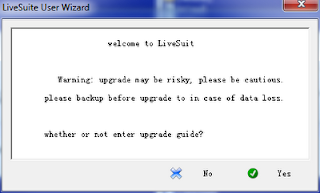
2. Now Click Yes .

Livesuit Allwinner tablet flashing tool

3.Livesuit wizard will ask for "Please select upgrade mode".
Click Format.

Livesuit Allwinner tablet flashing tool
4.Click on NEXT.

Livesuit Allwinner tablet flashing tool

5. Select .img file,firmware you have downloaded for tablet . Unplug tablet if you connect it to PC previously. 

Livesuit Allwinner tablet flashing tool

8.Select firmware and click open.

Livesuit Allwinner tablet flashing tool

9. Now plug your tablet to computer. Press Volume down button and insert cable in Tablet. PC will recognize you tablet and will install drivers. 

Livesuit Allwinner tablet flashing tool


10. Once it done tablet will be connected to PC and above window will pop up.

Livesuit Allwinner tablet flashing tool


11. Selecting Format upgrade mode is always suggested. This will erase all your data . 

Livesuit Allwinner tablet flashing tool
12. Select "Yes" to enter in format upgrade mode .If you choose "No" make sure you are installing same version of firmware already installed by company. 

Livesuit Allwinner tablet flashing tool

13. Click Yes
Livesuit Allwinner tablet flashing tool

14. Flashing process will start .It will take 3-5 minutes to complete the firmware loading.

Livesuit Allwinner tablet flashing tool


15. A window will pop up with massage OK . Click on Ok. 

Livesuit Allwinner tablet flashing tool
16. Disconnect the tablet and turn it on. First boot will take 2-4 minute to loading complete files. Do not panic. You are done. 
Make sure to charge battery more than 60% . Power failure during flash may result dead tablet. 


Labels: , , , , , , ,

Friday, August 2, 2013

How to flash or restore Android Tablets tutorial for newbies

Basic Training to Learn how to  flash ,Restore ,Upgrade ,Root ,all Android Tablets .Learn how to flash Android Tablet Pc.


This tutorial is specially for  newbies , 
There are few basic steps which is compulsory to start  flashing procedure for android tablets . A very basic steps which will allow you to flashing Tablets safely and smoothly . before starting you must install the drivers for tablets to let the computer know that device is connected. 
To install driver for android tablets, you must :
1. Make sure battery is up-to 60 % Charge.
2.Turn off your tablet .
3.Press and hold Volume Down "Volume -" button and insert USB cable which is already connected to your pc
4.While holding Volume down button press power button for 1 sec and release then press power button again for half sec and keep pressing it for half second until your computer recognize the tablet pc
5. For WIN XP user must install the Android Drivers in case of WIN 7 More then 50% devices drivers are available in WIN 7 , but in case no driver found or window take a lot of time to searching for drivers you must install manually . 
6. When device is connected go to properties of  My computer -->Hardware -->Device Manage  and make sure your tab is connected in USB Controller.
7. Make sure and done . Now you are ready to install complete firmware for your Tablet. 
Tablets with Allwinner Chipset flashed with Livesuit flashing tools and Tablets based on Rockchip must be flashed with Rkbatch Tool.

Note : In case of Device does not recognize by Pc  . Change the USB port . Restart your Computer or remove USB cable and try to turn on your android tablet simply (normal mode) and reconnect the cable . 

Labels: , , , , , ,