Friday, November 20, 2015

Unlocking blogger attribution widget

By default, blogger attribution widget is locked. For some reasons though, you might want to unlock it (I unlocked mine so I can move it to a different location). To do this, follow these steps:


Blogger Attribution Locked


STEPS
  • On blogger dashboard, go to Template > Edit HTML
  • Search for:
<b:widget id='Attribution1' locked='true' title='' type='Attribution'>

  • Replace with:
<b:widget id='Attribution1' locked='false' title='' type='Attribution'> 

  • Save and exit. 
  • Its now unlocked. You can move it to any location on your blog. 


Blogger Attribution Unlocked


Labels: , ,

Tuesday, April 21, 2015

Email Subscription Popup Window With Facebook Like Button and YouTube Subscribe Button For Blogger


Go to Blogger=>Select Blog

          Select Layout

          Select Add a Gadget

          Select HTML/JavaScript

         Add Below Code in Content Box and Save it.


In the Above Code You need to Edit Four things.
1. Background PSD File
2. Facebook Link
3. YouTube Channel Name
4. Feedburner ID

Watch Below Video For Detail Instructions On How to Edit Above Things. 

Labels: , , , , , , ,

Monday, October 29, 2007

Reasons why people don't comment on Blogger blogs?

Found this interesting and worthy post on How to live Online. As the title says, it's about Why people don't comment on Blogger blogs. Thanks to Thiru, the owner of the main post. Read on -

These 5 reasons apply to the users of Blogger service only. I have to admit that commenting on some blogger blogs is not an easy task. There are few hurdles a reader need to cross before they comment.

If you are a blogger user and want to get more comments, please sort out your commenting options.

  • Your blog says "You need a Blogger ID to comment on this blog"

    What if a reader do not have a blog, but wants to leave a comment. :@ I am sure, there are some billion people who read blogs but do not have a blog. Fix this by logging into Blogger.
    From dashboard, go to Settings --->Comments
    select 'Anyone' for 'Who can comment?'
    Click 'Save Settings' at the bottom of the page.

    By this way, people can comment anonymous. Anonymous comments sometimes provide good feedback for your posts.

  • Your blog shows a 'Word verification' AND you moderate the comments as well.

    If you have set 'Enable Comment Moderation', then you need not set 'Word verification' for commenting. Because, the word verification feature is not liked by non-techie people (and lazy :x commentors like me). I have removed the "Word verification" option in my comments section, but I am not receiving any 'spam comments'. The frequency of comments have gone up since then. Since you moderate every comment, you can simply 'reject' any marketing messages or spam comments.

    Tell your readers that you have removed the "word verification" on comments. Try it for few weeks, you are going to loose anything.

    [ Both settings available on the same page ]

  • You moderate your comments "once in a blue moon"

    No one wants to leave the first comment. So, if a reader sees a post without any comment, they wont probably leave a comment. :( Frequently check if anyone has left a comment for moderation - at least once in a day. There is a better option in Blogger that allows to receive notifications when someone comments on your blog.

    Use a separate email-id for receiving such notifications, and you can use this email-id to subscribe 'comment replies' from other blogs as well. Log in at least once a day and check if you have any comments waiting for moderation.

  • You never reply to a genuine reader's question (applies to all bloggers)

    You need to reply to a comment that says, "Excellent post', 'Wonderful words', 'Pretty pictures' etc. But, if a reader asks a genuine doubt or a questions, you need to answer them. Otherwise, you are not rewarding your fans who leave comments. When you answer them immediately, they feel their opinion is valued and answered, :$ this will encourage them to leave more comments in the future.

    One extra step you can take, is to visit their blog and leave comments.

  • Your comments open in a pop-up window.

    While, I click on 'comment on this post' link and wait, your comment box opens up in a pop-up window and I close your blog window thinking there is some problem. At the end of browsing session, I see your comment pop-up window hanging - but, I have forgotten already what I was about to reply to your post.

    Set 'No' to "Show Comments in a Pop-up Window?". [ Setting in same page as before ] It helps your readers.

  • And an additional reason:

    Not inviting your RSS subscribers to comment on a post. You can include a footer, that invites your readers to your blog to write comments (be nice and friendly!). If you are publishing your blog feed with Feedburner, you can build interactivity into your feed. There are plenty of options, 'Comments count', 'Email the author', 'Share in facebook' etc.


One additional point from me [Bikram here :) ] -
We need to go to a different page to comment. There's no option to comment from the post page itself. There are hacks for this which shows the comment window using iFrame. [as used in this blog. See comment window below] But this doesn't look good. Casual visitors just hate to go on clicking for no apparent reason. It'd have been better to have the comment box just below the post - ala - wordpress style.


What other things annoy you as a blog reader and what stops you from commenting on certain blogs?

Labels: ,

Friday, October 26, 2007

Blogger added email notification of comment follow-up

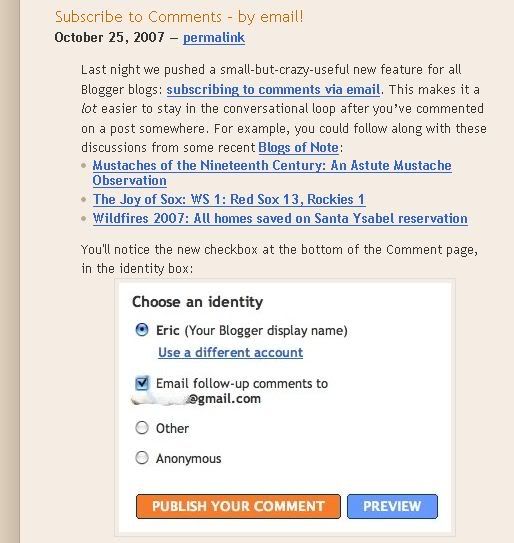
Blogger has just added a much sought-after feature in its commenting system - Subscribe to comments via email. What a relief. I actually found out about it while I was posting a comment on my friend's blog. I saw the new "Email follow-up comments" option in her comment box. :# I thought maybe it's a hack that she's using. So, I pinged her up on GTalk and asked what hack has she used. She was dumb-founded; as if I'm speaking latin. Anyways, I headed back to my blog and was replying to a comment there. That was another shock of excitement. That "Email follow-up comments" option was available in my comment box also. That's great. :o

I came back to my blogger dashboard and there it was - the blogger-buzz news.


That's one feature we all have been looking for a long time. Following comments was a real problem earlier for blogspot blogs. Wordpress users were much lucky in this regard. Say, I come upon a random blog post and find it interesting. I leave my views there as comment. Now, I'd surely like to see how others react to my comment. But that was one hell of a job till now. I used to bookmark that page and visit it time and again to check for new comments. Sometimes, I didn't want to do all that task - so simple left my comment and moved on; thus lost track of it. :@ Subscribing to comment feed isn't good enough. But now, the email subscription is here. And with this, following comments is lot more easier. :)

There's some insufficiency though. Only google account holders can use this feature. :( They say -
In order to receive follow-ups via email, you’ll need to post your comment using your Google Account. We only send comments to your verified Google Account so that someone else can’t use this feature to send you email you didn’t sign up for.
Well, their argument is viable. But still, it robs others of the chance of email follow-up. Same option for others would be appreciated.

Anyways, one more feature that we all are expecting Google to integrate. That is - providing the comment box just under the post - just like wordpress blogs. That way - we can write a comment from the post page itself and won't have to navigate to a separate page for that. That's a really bad drawback of blogspot. Hope google see to it soon. :$

Labels: ,

Wednesday, September 12, 2007

Tips to optimize your blog and get maximum visits


If you are new to the blogsphere, or been blogging for a while but don't get that many visitors, it's time that you have look at the layout of different specs on your item page. Most of the visits that a site gets is through search engine results or link form other sites or RSS feeds. On all these cases, visitors land on item page of some specific post of your blog. They may just read the post and leave. But if you wanna get them back as loyal readers, you've gotta spice up your page to make a good first impression. But be cautious. Overdo it, and you may just irritate your visitor away.

Here I give you few essentials tips to make your page optimally user-friendly. Follow them closely, implement them and see the popularity of your site soaring high.


  • Title : Give your post a proper title. When a visitor has come to your site following a link to your post, he's already formed an idea about the post, as per the title. So, if it's not catchy enough, he just might not be interested in reading it at all. And if it doesn't justify or match with the content of the post, the visitors feels lost, or worse - mislead and cheated. So, be careful while choosing a title.

  • Time Stamp : The best place to show the time stamp, i.e., when the post was written, is just after the post title. Don't make the visitor shuttle between top and bottom of the post just to check when it was posted. A visitors needs to know the currency of the post before reading it, not after finishing it. Check one such ideal use in pic below.

  • Font Size and Line Spacing : Use moderate font sizes. Don't make the reader squint their eyes to read your content. 1em is considered the perfect size for a comfortable reading. Add or subtract .1 or .2 em as per your linking, but don't make it too tiny or too large. Best option is, you can use a variable font-size widget. Check this.

    Just like font size, line spacing is also an important property. It's set by the CSS property line-height. As the name itself makes it clear, without line spacing, all the text lines look crammed. Use
    line-height: 1.5em
    or some other value that suits you.

    Check the two images below for comparison. First image is example of how the text looks when there's no line spacing. 2nd image is of the same post, but with 1.5 em line-height. Text n background is green in both pics as the text is selected to highlight the space between two lines.

    Text without line spacing [line-height: 0]


    Text with line spacing [line-height: 1.5em]
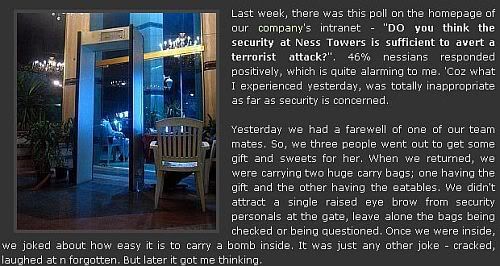
  • Image margin : Probably the most visually appealing property that can ruin the mood of your visitors if not used properly. There should be some empty space all around the images of your post. Give your images some breathing space. Check image on right. Have at least 5 px space between your images and text. This property can be set using
    .img {
    margin: 5px
    }
    code in the post-image class in your stylesheet or you can use it as follows -
    <img src="image.jpg" style="margin: 5px" >
    for individual images.
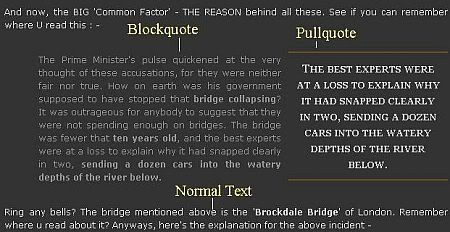
  • Use Blockquote & Pullquote : Whenever you are quoting someone or some other source, use blockquote. To instantly draw the attention of the visitor to a particular important part of the post, use Pullquote. Their implementations are explained in code section below.

  • Code Section :

    Code for Above tricks

    Given below is the ideal pieces of code to implement above tips. Change the integer values as per your liking and check the effects. You need to place these codes appropriately in your stylesheet or between opening <style> and closing </style> tag of your site template.
    body {
    font: 1em 'Lucide Grande', Verdana, Arial, Sans-Serif;
    line-height: 1.5em;
    }

    .img {
    margin: 5px;
    padding: 3px;
    }

    .blockquote {
    background: url('blockquote.gif') no-repeat top left;
    margin-left: 3.9em;
    color: #8f8f8f;
    width: 80%;
    }

    .pullquote {
    padding: 10px;
    width: 200px;
    float:right;
    margin:10px 0 10px 10px;
    border-top:2px solid #694e1c;
    border-bottom:2px solid #694e1c;
    text-align: center;
    line-height: 22px;
    font-family: georgia, verdana, Arial, Helvetica, sans-serif;
    font-variant: small-caps;
    color:#ccc;} /* Usage - h4 class="pullquote" */


  • Easy Comment Option : Commenting on the article should be easy. The more comments your post has got, the more popular and attractive it seems to the visitors. Wordpress style commenting is the best. But blogspot bloggers doesn't have this feature. You can use this hack. Otherwise, the link for comment form should be placed in such a location that it could be found easily. Preferably, just at the end of the post.

  • Top Commentators : Another way to get your readers involved is to use a 'Top Commentators' widget on the sidebar. Everyone wants to be on 'Top 10', don't they. So, if you have such a widget, which will list 10 people as top readers / commentators, it'd seem like reward for the visitors. They will comment on your posts with more enthusiasm. Check this post for ways to install 'Top Commentator' widget. And if you're not a wordpress user, go for the recent comments widget as explained here.

  • Bookmark Options : This is one important way to get more visitors. Provide social bookmark links at the end of your post. [Check end of this post, for example] This will help other visitors to find your post and eventually visit it, leading to more traffic to your site. One very useful way of providing social bookmarking options is explained here. Alternatively, you can make use of Add This. It provides options for bookmarking your story to all major social bookmarking sites. Follow instructions there.

  • Related Post : At the end of post - use a widget like Related Post. The visitor has come to your site to read about some particular topic. And if you provid ehim with alternate links of related post, he'll surely visit some of them, in turn staying on your site for more time.

  • Top Articles : Sidebar is the best location to place a widget like "Top Viewed Posts" of your blog. This will prompt the visitor to visit your other posts, instead of leaving your site. You can manually build one such list of posts and place it on the sidebar. Or, there are some vendors who provide such widgets. Check Spotplex. Trust me, this is really a very useful widget.

  • Provide feeds easily : All these done and now the visitor is impressed with your blog. But if it takes him long to figure out how to subscribe to it or where to get the feed, he'll simply close the window. Place the site feed subscription options either at the top or bottom of the sidebar. I strongly oppose placing it in between. And, provide both Bookmarking and email subscription options. Use Feedburner as it provides a host useful services along with your feed. And use the standard RSS Feed icon instead of a text link as it will help visitors to easily locate it and understand its purpose.

Ok, so these are the few minimum basics that you should follow to optimize your post page. Once the visitor is impressed, he'll surely visit it again and refer it to his / her pals. That way, the readership of your site will keep increasing. Lemme know if you need help regarding any of the tips above. I'll be glad to assist you in any way. Keep blogging. Chao.

Labels: , ,

Sunday, September 2, 2007

Blogger Hacked ...?

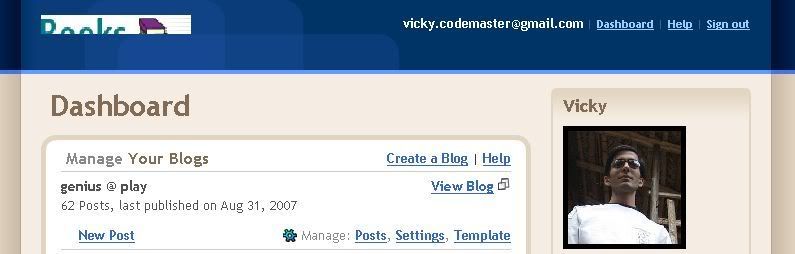
Just as I logged into blogger today, I found the blogger logo missing from the header of the dashboard. Instead of the Blogger logo, there was this half cropped image having 'Books' written on it. Have a look below.

What's this....?? Blogger hacked? I don't think so. Guess the logo has somehow been replaced with this weird image. The logo URL is http://www.blogger.com/img/logo40.gif but this now shows the 'Books' image. Google - look what's wrong.

Labels: , ,