Sunday, October 30, 2016

ROM (KOPA) Mokee OS 12.1 for Alcatel Flash 2 Lollipop

ROM (KOPA) Mokee OS 12.1 for Alcatel Flash 2 Lollipop


ROM (KOPA) Mokee OS 12.1 for Alcatel Flash 2 Lollipop Screenshot

ROM (KOPA) Mokee OS 12.1 for Alcatel Flash 2 Lollipop Screenshot


MoKee Open Source is based on the Google AOSP. We update our source code frequently to keep up with the latest development, and not forgetting to merge in special features of our own at the same time. 


A small group of people from around the world who are interested in Android launched this project on the 12th of December 2012, and is committed to make this ROM better and better. Like most contributors of open source projects (Omni, CyanogenMod, Slim AOSPA etc), we are doing all these in our free time as our passion… 

Flash at your own risk.

Bugs?
You tell me.

Rom Link:

[Mokee OS 12.1 ##download##]

Google Apps Link:

[Opengapps ##download##]

Select Arm 64-5.1-micro

How to Install?
-Reboot to TWRP
-Wipe Data/Factory Reset
-Install zip-choose Mokee 5.1.zip
-Install G apps (optional)
-Wipe Dalvik/Cache
-Reboot Phone
-Done

Wait 5-10 minutes for boot up.

Credits:
KOPAfamily
JonacxDgreat
Maximum 

Most of all
God
Yours truly: Roland

Labels: , , , , , , , ,

Wednesday, November 11, 2015

How to fix bootloop in Alcatel Flash 2 included Stock Rom flash via SPFT

How to fix bootloop in Alcatel Flash 2 included Stock Rom flash via SPFT
This tutorial is able to help you oh how to fix bootloop and hardbrick in Alcatel Flash 2.
In case you don't have backup and installed custom recovery you can proceed in this procedure.
How to fix bootloop Alcetel Flash 2


Requirements:
PC
USB Cable

Download Links:
Mediatek VCOM Drivers
AFP2 Stock rom(v2.9 lollipop)


 Instructions
1. Download all necessary files and Enable USB Debugging mode in your phone..
2. Install Drivers USB_VCOM_Driver.rar
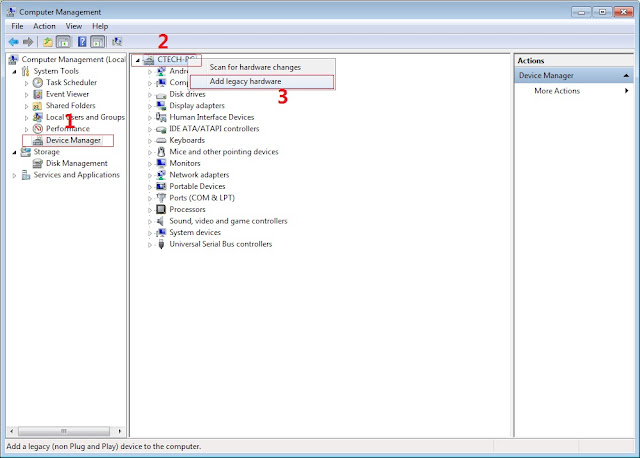
In Device Manager Right click on PC name(Right Side) and then click on Add legacy hardware as shown in image below.

How to fix bootloop in Alcatel Flash 2 Screenshot 2
Now in Add Hardware Wizard click on Next » Install the Hardware that i manually select from a list (Advanced) » Show All Devices » Next » Have a Disk, Now select the any inf file from where you extracted the downloaded VCOM driver package.

How to fix bootloop in Alcatel Flash 2 Screenshot 3

3.  Now Click on Next and select Install this driver software anyway and wait for finishing the process.

How to fix bootloop in Alcatel Flash 2 Screenshot 4

4.  After installation is finished then Restart your computer, That's it.
5. Open flash_tool.exe, click on the Download Tab
 Extract the downloaded AFP2 stock rom to the new folder you created.
How to fix bootloop in Alcatel Flash 2 Screenshot 5

6. Click Scatter-loading and browse for the scatter file (MT6753_Android_scatter)
7. For Bootloop only
 Make sure flashing mode is set to "Download Only" and check mark all except Preloader.
Note: If deadboot/hardbrick set "Download+Format" and check Preloader.
8. Click Download.
How to fix bootloop in Alcatel Flash 2 Screenshot 6

9. Turn off your phone, connect your phone to the PC and wait for the flashing to commence.
10. Green Circle image with check will show once flashing is completed. That's it!

How to fix bootloop in Alcatel Flash 2 Screenshot 7

11. Disconnect your phone in USB cord then open if still bootloop then try to factory reset in recovery settings. To go in recovery mode reboot your phone hold and press power on and volume up simultaneously until recovery mode appeared.

Credits:
Long nt for rom
AFP2 Group

Labels: , , ,

Monday, November 9, 2015

[UPDATED] Materialized TWRP for Alcatel Flash 2

[UPDATED] Materialized TWRP for Alcatel Flash 2

TWRP for Alcatel Flash 2


What's New?
- Change to Material UI.
- Fixed backup error when stock rom is too large.
- Update kernel to V3.1 rom.


Requirements:
Rooted for rooting proceed here
flash2_twrp_v2.zip
Flashify_1.9.1.apk


Procedure:
Step 1:Install Flashify_1.9.1.apk

Step 2: Move the recovery.img in your SDCARD outside the folder which you can see easily.

Step 3: Open Flashify Grant SuperSu
Click Recovery from Storage
Then choose Recovery.img Click OK
That's it! Enjoy

Credits:
Long nt
AF2 group
Yuweng
XDA

Labels: ,